On this page
An eligible NCB eCommerce merchant can connect its Powertranz card-payment configuration to WooCommerce through Genius Checkout. Lynk requires its own wallet configuration and appears as a separate payment method. NCB controls merchant approval, currencies, and settlement terms.
This guide reflects the integration reviewed on September 4, 2026.
Identify which NCB service you received
NCB's published ecommerce page identifies Powertranz, formerly First Atlantic Commerce, for its hosted card-payment service. Your onboarding pack should name the gateway mode and credentials.
Lynk is a wallet rather than a Powertranz card brand. Configure it separately if NCB or Lynk approved the business for that service.
| Merchant service | Genius Checkout configuration |
|---|---|
| NCB ecommerce card account using Powertranz | Select the matching Powertranz mode |
| Lynk merchant payments | Configure the Lynk gateway separately |
| Card and Lynk options | Enable both configurations and choose buyer-facing methods |
Prepare the accounts
Collect the non-secret labels from the onboarding material before setup:
- Provider and gateway name.
- Direct or hosted-page mode.
- Test and live environment details.
- Enabled currency or currencies.
- Tokenization and recurring-payment permission if needed.
- Lynk merchant approval if you plan to offer the wallet.
Enter passwords and secret keys only inside Genius Checkout. Support can help identify fields from redacted screenshots.
Configure the Powertranz connection
- Open the Genius Checkout merchant for the WooCommerce store.
- Select the Powertranz mode that matches the NCB onboarding pack.
- Enter the test credentials and currency.
- Save the configuration.
- Test through a Genius Checkout payment link.
- Configure live credentials only after the test flow passes.
The NCB relationship does not make unsupported currencies or gateway operations available. Use only the capabilities provisioned for the merchant.
Install and connect WooCommerce
- Install the current Genius Checkout for WooCommerce plugin.
- Open the payment-method settings.
- Enter the Genius Checkout API credentials for the same merchant.
- Authorize the exact store domain.
- Confirm the merchant name and environment shown by the connection status.
- Select the accepted payment methods.
- Place a controlled order using your own approved test details.
The order should receive a unique Genius Checkout session and transaction reference. A retry of a failed order must create a new payment attempt.
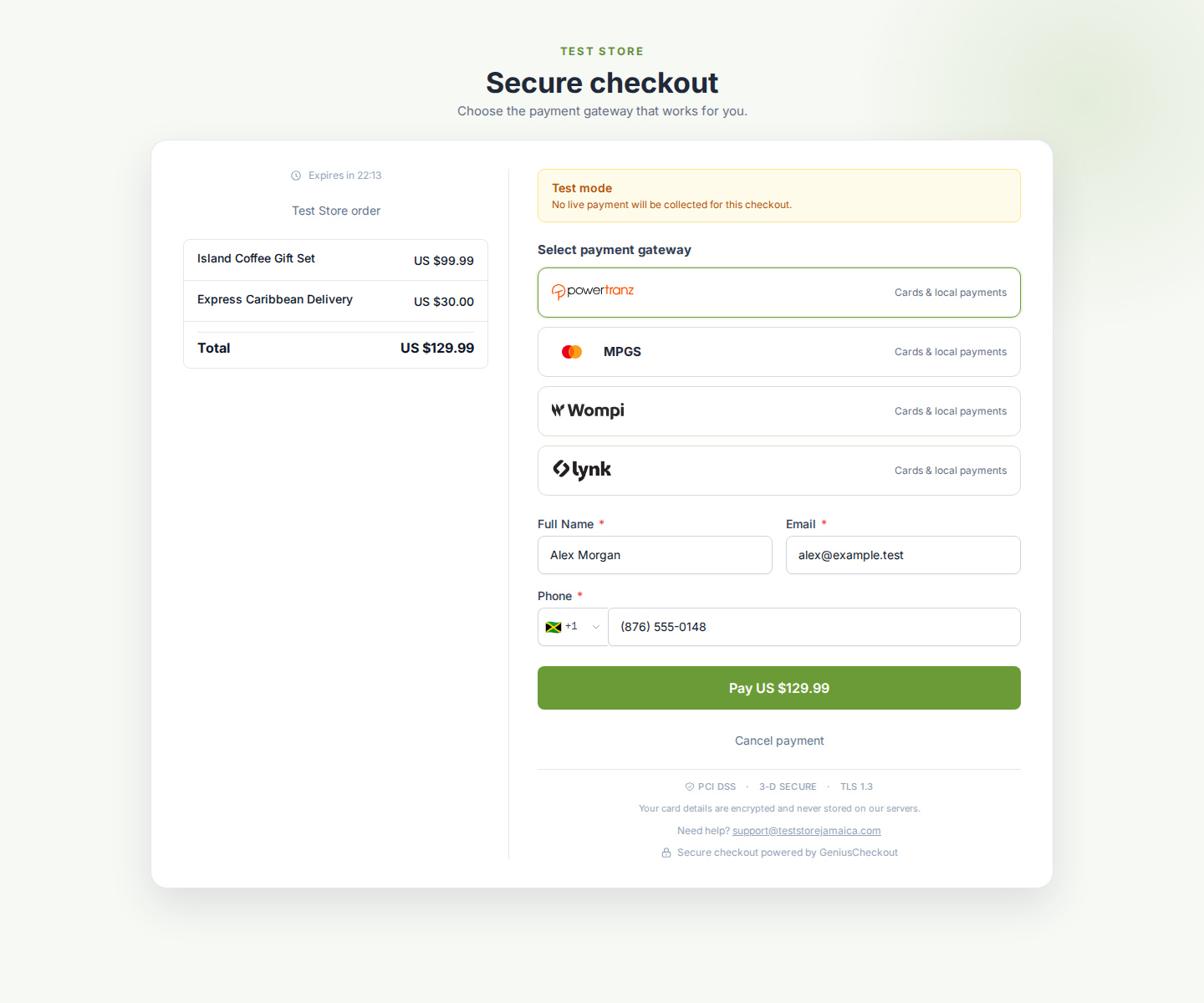 An NCB eCommerce card facility uses the Powertranz route that matches the merchant's onboarding pack. Other rows appear only when the merchant has configured those services separately.
The current Genius Checkout plugin supports WordPress 6.0 or newer, WooCommerce 8.0 or newer, PHP 8.0 or newer, WooCommerce High-Performance Order Storage, and classic and Blocks checkout. Check the current WordPress.org requirements before changing a live store.
Add Lynk as a separate choice
After the Lynk merchant configuration passes its own test, select Lynk in the WooCommerce accepted payment methods. The checkout can display card brands and Lynk together, but the two routes retain separate provider behavior.
Test wallet approval, cancellation, expiration, delayed status, and the return to WooCommerce. Do not copy card renewal assumptions into a wallet flow.
Verify the customer experience
- The WooCommerce checkout identifies Genius Checkout and the supported methods.
- The hosted page displays the merchant logo and name.
- Amount, currency, order reference, and buyer details remain correct.
- Declines display a safe, specific reason when the API supplies one.
- Cancellation leaves the order payable.
- Success reaches the order-received page without a stale decline notice.
- WooCommerce records the card brand and last four digits or the wallet identifier returned by the provider.
Subscriptions and refunds
Subscriptions through the Powertranz card route require tokenization on the merchant account and the relevant Genius Checkout plan. Test a renewal, failed renewal, retry, and payment-method update.
For after-payment actions, Genius Checkout selects void for an eligible uncaptured authorization and refund for an eligible captured payment. The gateway must support the requested action.
Use an NCB payment relationship beyond WooCommerce
Depending on whether the merchant has Powertranz, Lynk, or both, Genius Checkout can also connect the approved services to HighLevel, Ecwid, GiveWP, and hosted payment links and QR codes. Each service keeps its own provider capabilities, credentials, and transaction lifecycle.
Sources and next steps
- NCB eCommerce overview
- Powertranz overview
- Lynk overview
- WooCommerce overview
- Genius Checkout for WooCommerce on WordPress.org
- NCB eCommerce Solutions
Create a Genius Checkout account or book an NCB setup review.