On this page
The Genius Checkout WooCommerce plugin can present Lynk as a separate wallet payment method for an approved Lynk merchant. Buyers follow the Lynk approval flow, while Genius Checkout records the status and returns the result to the WooCommerce order.
This guide reflects the integration reviewed on September 4, 2026.
Treat Lynk as a wallet
Lynk should not appear as a card brand. It has a separate provider configuration, buyer action, status lifecycle, and merchant requirement.
| Detail | Lynk behavior |
|---|---|
| Payment type | Mobile wallet |
| Merchant requirement | Approved Lynk business access and integration credentials |
| Buyer action | Complete the Lynk approval flow |
| WooCommerce result | Returned to the order through Genius Checkout |
Configure Lynk in Genius Checkout
- Select the Genius Checkout merchant that owns the store.
- Open Gateways and choose Lynk.
- Select test or live mode.
- Enter the merchant credentials for that environment.
- Save and run a controlled payment-link test.
- Confirm success, cancellation, expiration, and pending-status handling.
Do not test from a customer order. Use an approved test merchant and buyer account.
Add Lynk to WooCommerce
- Install or update Genius Checkout for WooCommerce.
- Open WooCommerce → Settings → Payments → Genius Checkout.
- Connect the API credentials for the merchant with the Lynk configuration.
- Authorize the store domain.
- Use the searchable Accepted Payment Methods selector to choose Lynk.
- Save and confirm that one selector appears, with the selected method displayed as a tag.
The selector changes the WooCommerce display. Lynk still needs an active provider configuration in Genius Checkout.
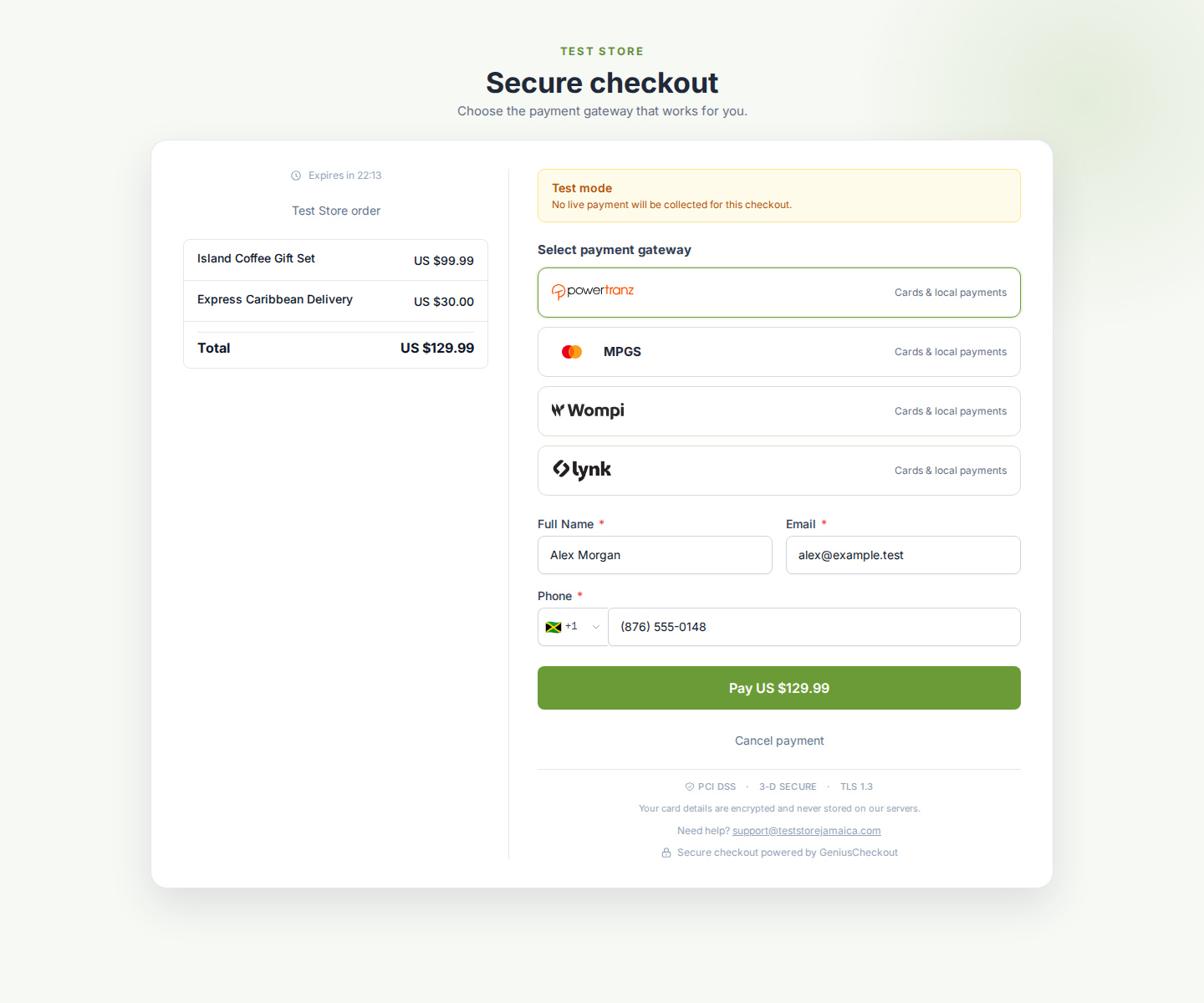 Lynk appears as a distinct wallet route rather than a card brand. The other gateway rows are shown only when that merchant has configured them.
The current Genius Checkout plugin supports WordPress 6.0 or newer, WooCommerce 8.0 or newer, PHP 8.0 or newer, WooCommerce High-Performance Order Storage, and classic and Blocks checkout. Check the current WordPress.org requirements before changing a live store.
Test the buyer flow
Use a small test product and verify:
- Lynk appears once and uses the official Lynk mark.
- The amount, currency, buyer details, and order reference remain correct.
- The buyer can cancel and return to the store.
- A pending payment does not mark the order paid.
- A confirmed payment updates the WooCommerce order once.
- Repeated provider callbacks do not duplicate the order update.
- A retry creates a new Genius Checkout transaction.
The order and subscription screens should show a safe wallet identifier when Lynk returns one. They should not claim that the buyer used a card.
Offer Lynk beside card payments
A merchant can configure Lynk beside Powertranz or MPGS. WooCommerce displays the payment-method hints selected by the store owner, and Genius Checkout presents the methods available for the order.
Card features such as reusable tokens, Authorize Only, capture, and card-brand display do not define the Lynk flow. Apply the capability rules returned for Lynk.
Payment links and QR codes
Merchants can also present Lynk through a supported Genius Checkout payment link. The link can be shared by message or opened from a QR code. This helps a merchant collect a remote payment without a WooCommerce cart.
The payment link and WooCommerce order remain different source records. Use the source reference and Genius Checkout transaction ID for reconciliation.
Common problems
Lynk does not appear. Confirm the gateway is active for the merchant and that the WooCommerce accepted-method selector includes Lynk.
Payment stays pending. Check the provider status and callback delivery before marking the order paid.
The store reports no gateway configured. Confirm the WooCommerce API key belongs to the merchant with the active Lynk connection.
The checkout shows a card-only label. Update the store text to “Accepted Payment Methods” and use payment-type-specific order details.
Use Lynk beyond WooCommerce
An approved Lynk merchant can use the same Genius Checkout configuration with HighLevel, Ecwid, GiveWP, and hosted payment links and QR codes. Test each workflow because wallet approval, pending states, and the return experience differ by source platform.
Sources and next steps
- Lynk payment overview
- WooCommerce integration overview
- NCB eCommerce and Lynk overview
- Payment links and QR codes
- Genius Checkout WooCommerce documentation
- Genius Checkout for WooCommerce on WordPress.org
Create a Genius Checkout account or book a Lynk setup review.