On this page
Nequi gives Colombian buyers a phone-based way to approve an online payment. Through Genius Checkout, a merchant with an eligible Wompi Colombia account can connect that hosted approval flow to the software that created the sale.
Last reviewed: September 25, 2026.
Design around the phone approval
Wompi's Nequi flow asks for the Colombian mobile number registered to the buyer's Nequi account. Nequi sends a push notification, and the buyer approves or rejects the request in the app.
Tell the buyer to keep the Nequi app available and confirm the amount before approval. The checkout should remain useful if the push arrives late or the customer changes apps on the same phone.
Keep the original sale in the original platform
A boutique may start the order in WooCommerce. A consultant may sell through HighLevel. A small business may send a payment link after agreeing on a product through chat. The source system sends the order to Genius Checkout, which creates the Wompi payment session.
Genius Checkout records the buyer return and provider result against the source order. It does not store the buyer's Nequi credentials or turn the wallet into a card.
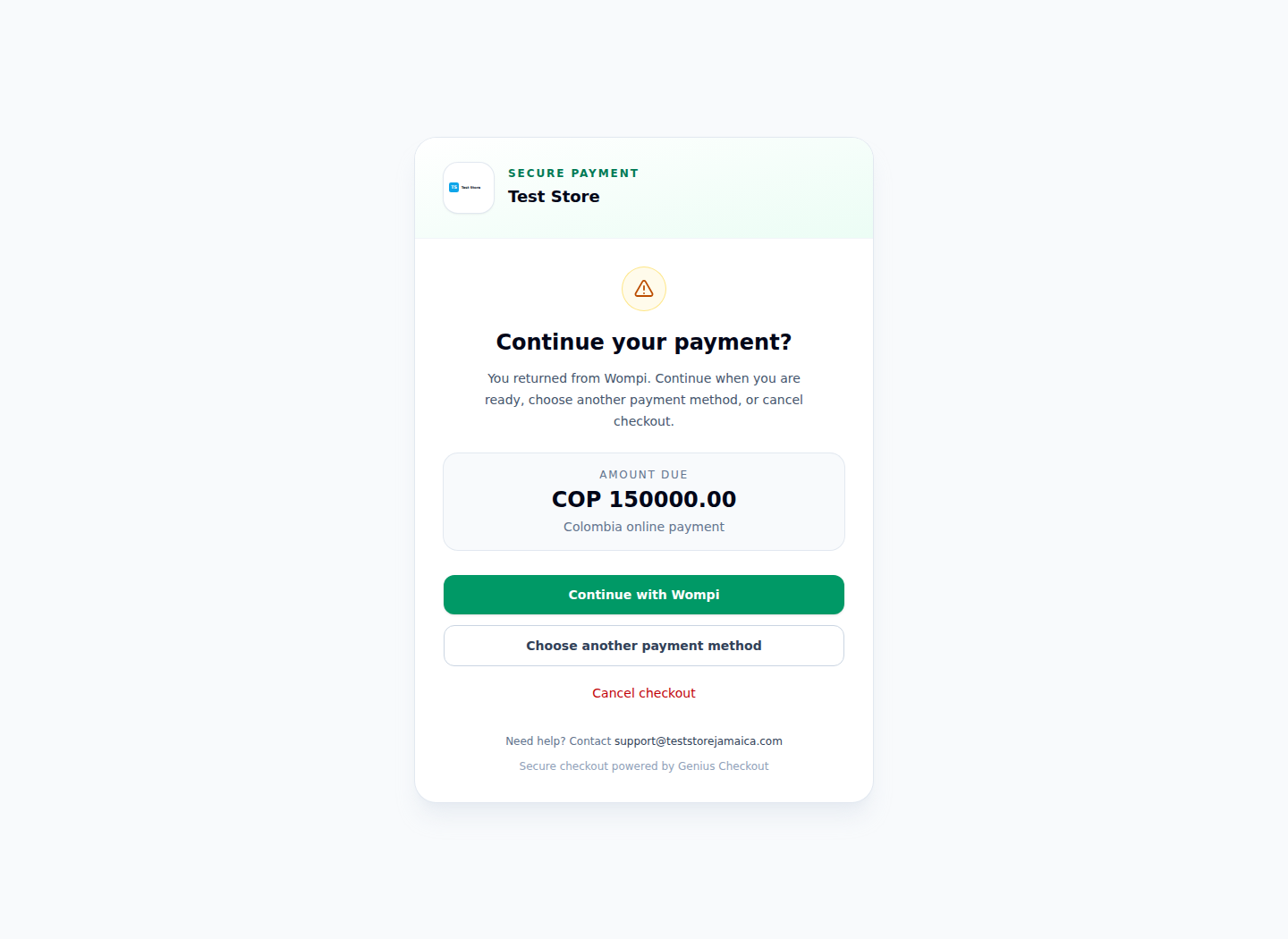
The Test Store screenshot shows the Wompi-only return path used by eligible local methods such as Nequi.
Handle a buyer who leaves the browser
Mobile buyers often switch from the browser to the Nequi app. Preserve the checkout session while they approve. Show a clear resume screen if they return with the browser Back action. Give them a cancel option instead of reopening the hosted page in a loop.
Use the server-side Wompi event and status to confirm payment. The buyer may close the browser after approval, so browser navigation cannot be the only settlement signal.
Avoid duplicate attempts
A rejected or abandoned payment remains part of the history. If the customer tries again, create a new Genius Checkout attempt and a new Wompi transaction. Keep the original store order or invoice reference as the common business identifier.
This model gives support staff a complete timeline without asking Wompi to reuse a rejected transaction.
Verify Nequi before adding its logo to checkout
Use the merchant's Wompi test environment to confirm that Nequi appears for a COP transaction. Test approval, rejection, no response, cancellation, return from the app, delayed callback, and retry. Confirm that the originating platform shows the final status and a useful payment-method label.
Wompi controls merchant eligibility and method availability. A Genius Checkout Wompi connection does not guarantee that Nequi appears on every account.
Sources and next step
- Wompi Colombia payment methods, including Nequi
- Wompi payer guidance for Nequi
- Genius Checkout Wompi overview
Book a connection review to verify Nequi in your Wompi checkout before launch.