
On this page
- What each company does
- 1. Apply for the right Sagicor merchant facility
- 2. Choose MPGS Direct or Hosted Checkout
- 3. Create the MPGS API password
- 4. Configure Sagicor MPGS in Genius Checkout
- 5. Connect the software the business already uses
- 6. Test more than one successful payment
- 7. Move from test to live without mixing credentials
- Common Sagicor MPGS setup problems
- Frequently asked questions
- Official references and next step
To integrate Sagicor eCommerce in Jamaica, first obtain an approved merchant payment-gateway facility from Sagicor Bank. Confirm whether the account supports MPGS Direct or MPGS Hosted Checkout, create the required API credentials in the Mastercard merchant portal, configure the matching Sagicor MPGS option in Genius Checkout, test the full payment lifecycle, and then repeat the configuration with the live credentials.
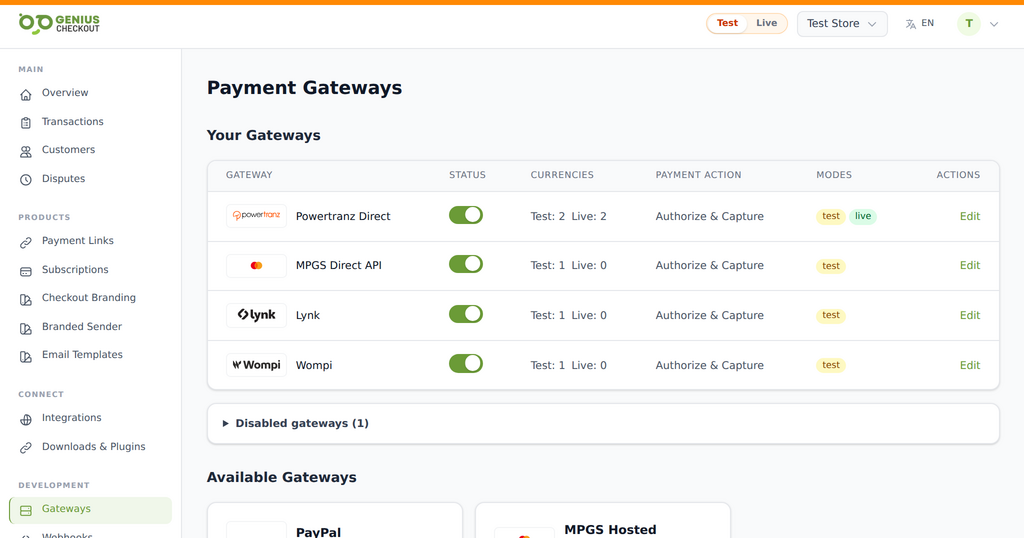 Genius Checkout keeps each approved gateway as a distinct route. The merchant activates only the services and environments provisioned for its own account.
That is the short answer. The important part is matching every setting to the facility Sagicor actually approved for your business. A working portal login does not necessarily mean that Direct API access, Hosted Checkout, tokenization, recurring payments, refunds, or every currency has been enabled.
This guide was reviewed on September 25, 2026.
What each company does
| Party | Responsibility |
|---|---|
| Sagicor Bank | Reviews the merchant application, provides or confirms the merchant facility, settlement arrangement, enabled currencies, and permitted payment features |
| Mastercard Payment Gateway Services (MPGS) | Provides the payment-gateway technology and merchant administration portal used by the account |
| Genius Checkout | Connects the approved gateway account to payment links, websites, business software, and supported eCommerce integrations |
| Your website or business platform | Creates the order and sends the buyer into the payment flow |
Sagicor describes its Payment Gateway Solution as a way for businesses to process online payments. Approval, pricing, settlement timing, card acceptance, and risk requirements remain subject to the bank's current merchant agreement.
1. Apply for the right Sagicor merchant facility
Tell the bank how the business will take payments before asking for technical credentials. A hotel collecting deposits, an online retailer shipping goods, and a membership business charging recurring fees may need different capabilities.
Ask Sagicor to confirm these points in writing:
- The legal business name and merchant ID.
- Whether the account uses MPGS Direct, Hosted Checkout, or both.
- The test and live merchant administration URLs.
- Which currencies and card brands are enabled.
- Whether 3-D Secure is required and active.
- Whether
PURCHASEis allowed for immediate capture. - Whether
AUTHORIZEand laterCAPTUREare allowed. - Whether voids, full refunds, and partial refunds are enabled.
- Whether tokenization and merchant-initiated recurring payments are permitted.
- The settlement bank account and settlement currencies.
Do not choose Direct or Hosted Checkout based only on a screenshot or another merchant's settings. Use the onboarding pack issued for your own merchant ID.
2. Choose MPGS Direct or Hosted Checkout
Both modes can accept an online card payment, but the buyer journey and account requirements differ.
| Decision | MPGS Direct | MPGS Hosted Checkout |
|---|---|---|
| Payment form | Presented through the Genius Checkout flow | Presented on the Mastercard-hosted payment page |
| Browser handoff | The buyer remains in the Genius Checkout payment experience until the gateway step completes | The buyer is redirected to the hosted gateway page and then returned |
| Saved cards and subscriptions in Genius Checkout | Available only when the bank enables tokenization and recurring use | Not currently supported through the Genius Checkout HPP module |
| Best fit | Branded checkout, supported tokenization, subscriptions, or tighter payment-flow control | A bank-hosted card-entry page and simpler card-data handling |
| Required bank capability | Direct/API processing | Hosted Checkout profile |
If the business will sell a subscription or start with a free trial and charge later, settle the tokenization question before building the website. A successful one-time payment does not prove that the account can store a reusable payment method.
3. Create the MPGS API password
Sagicor's MPGS merchant administration portal is commonly reached at sagicorbank.gateway.mastercard.com/ma. Use the exact portal address in the bank's welcome email if it differs.
The portal login password and the API password are separate credentials. To prepare API authentication:
- Sign in with the merchant administrator supplied by the bank.
- Open Admin → Operators and create an operator if the account does not already have one for integration work.
- Sign in as the appropriate operator.
- Open Admin → Integration Settings → Edit.
- Generate and enable Password 1 for API access.
- Store the password in a password manager. Do not email it, place it in a screenshot, or commit it to source control.
Genius Checkout builds the MPGS API username as merchant.<Merchant ID>. Enter the merchant ID itself in the configuration. Do not add the merchant. prefix unless the current field instructions explicitly ask for it.
4. Configure Sagicor MPGS in Genius Checkout
Start in test mode so a configuration mistake cannot affect live orders.
- Sign in to the Genius Checkout merchant account that will own the payments.
- Open Gateways.
- Choose MPGS Direct or MPGS Hosted Checkout to match the approved facility.
- Select the Sagicor region preset when it is available.
- Use
https://sagicorbank.gateway.mastercard.comas the gateway base URL unless Sagicor supplied a different host. - Enter the Merchant ID and API password from the same environment.
- Leave the supported API version at the documented default unless the onboarding team requires another version.
- Enable only currencies confirmed for this merchant account.
- Choose Authorize & Capture for an immediate charge or Authorize Only when the business has an approved reason and operating process for capturing later.
- Save the configuration and run Test connection.
The connection test authenticates and creates an empty MPGS session. It does not charge a card. A successful connection therefore proves that the host and credentials work, not that a complete payment, 3-D Secure challenge, capture, or refund will succeed.
Read the full MPGS configuration guide while entering the settings.
5. Connect the software the business already uses
Once the MPGS account works in Genius Checkout, the merchant can accept payments through the most suitable channel:
- Create payment links and QR codes for invoices, WhatsApp sales, deposits, or counter payments.
- Connect WooCommerce for a WordPress store.
- Connect HighLevel for funnels, agencies, memberships, and CRM-driven sales.
- Connect Ecwid or GiveWP where those platforms fit the business.
- Use the Genius Checkout API for a supported custom website or application.
For WordPress, use the separate MPGS and WooCommerce setup guide. That article covers plugin settings, domain authorization, order notes, renewals, cancellation, and refund behavior without repeating the bank-onboarding steps here.
6. Test more than one successful payment
A launch test should cover the states the merchant will have to support after the website goes live.
| Test | What to verify |
|---|---|
| Approved payment | Correct amount, currency, buyer details, order reference, receipt, and settlement path |
| Declined payment | A useful buyer-safe message and a recorded failed attempt |
| 3-D Secure | Challenge or frictionless flow returns to the correct order |
| Buyer cancellation | The buyer can leave the payment page and retry without a redirect loop |
| Browser Back | The order remains recoverable and the gateway does not reopen endlessly |
| Authorize Only | A capture action appears only when the account and transaction support it |
| Refund or void | Captured payments refund; uncaptured authorizations void when supported |
| Saved card | The returned token belongs to the correct merchant and customer |
| Renewal | A fresh transaction and unique gateway order reference are created for every attempt |
Record the test order ID, Genius Checkout transaction ID, MPGS reference, UTC time, mode, and result. Never record a full card number or security code.
7. Move from test to live without mixing credentials
Test and live are separate configurations. Before enabling live payments:
- Confirm that Sagicor has activated the live merchant ID and required features.
- Enter the live Merchant ID and live API password in the live Genius Checkout view.
- Select only live-approved currencies.
- Authorize the production website domain where the integration requires it.
- Run one controlled low-value payment with an approved real card.
- Verify the order, Genius Checkout transaction, MPGS transaction, receipt, email, and expected bank settlement record.
- Test a void or refund while the launch team is still available.
Never copy a test password into live mode or infer that a feature enabled in test is automatically enabled in production.
Common Sagicor MPGS setup problems
Authentication fails
Confirm that the Merchant ID, API password, base URL, and environment belong together. Resetting a portal login password does not create a new API password.
Hosted Checkout does not open
Ask whether Hosted Checkout is enabled on the merchant profile. Also confirm that the provider page is opening as a top-level browser page rather than inside an iframe that the gateway blocks.
A payment works but subscriptions fail
The account may support purchases without tokenization or merchant-initiated transactions. Confirm both the bank capability and the Genius Checkout subscription capability.
A currency is rejected
The website currency, Genius Checkout gateway currency, and currency enabled by Sagicor must match. A currency appearing in a software dropdown does not prove that it is enabled on the merchant account.
The buyer returns without an updated order
Check the gateway callback, return URL, webhook delivery, and final MPGS status. Do not mark the order paid from a browser redirect alone.
Frequently asked questions
Is Sagicor eCommerce the same as MPGS?
Sagicor provides the merchant relationship and payment-gateway solution to the approved business. MPGS is the Mastercard gateway technology used for the integration. The merchant should follow Sagicor's onboarding terms and use the credentials issued for the Sagicor merchant profile.
Do I need a Sagicor business bank account?
The account and settlement requirements are set by Sagicor. Ask the bank which business account, due-diligence documents, and merchant agreement apply to your company.
Can I use MPGS without WooCommerce?
Yes. Genius Checkout can expose an approved MPGS configuration through payment links, QR codes, supported software integrations, and custom API work. The best route depends on the business process, not only the gateway.
Can Genius Checkout approve my merchant application?
No. Sagicor controls merchant approval, settlement, pricing, and gateway capabilities. Genius Checkout handles the software connection after the facility has been approved.
Official references and next step
- Sagicor Payment Gateway Solutions
- Sagicor business ways to pay
- Mastercard Hosted Checkout API documentation
- Genius Checkout MPGS overview
- Genius Checkout MPGS configuration guide
Create a Genius Checkout account or book a setup review with your Sagicor onboarding details available.