
On this page
A Colombian business can keep its sales process in HighLevel and use an eligible Wompi merchant account for the payment. Genius Checkout provides the connection between them: HighLevel owns the product and customer journey, Wompi presents the payment methods, and Genius Checkout carries the verified result back to the order.
This is a Wompi integration, not a request for HighLevel to connect directly to a bank account. The merchant must first be approved by Wompi and receive the correct test or production credentials.
Last reviewed: September 25, 2026.
What the buyer sees
The buyer starts on the merchant's HighLevel page. When payment begins, Genius Checkout opens a secure top-level checkout and hands the transaction to Wompi. Wompi may show eligible Bancolombia options such as its transfer button, QR, correspondent payment, Puntos Colombia, or financing, along with other methods enabled for the account.
The exact list belongs to Wompi. Test the merchant's own checkout before naming a method in an advertisement or placing its logo on the page.
Why the checkout leaves the HighLevel frame
HighLevel can embed a custom payment provider, but a bank or gateway hosted page may refuse to load inside an iframe. Genius Checkout therefore moves the buyer into a top-level secure payment window when the provider requires it. This avoids a blank embedded page while keeping the original HighLevel order reference.
Buyer name, email, phone, and other supported fields still pass into Genius Checkout when HighLevel supplies them. The handoff changes the browser context, not the order relationship.
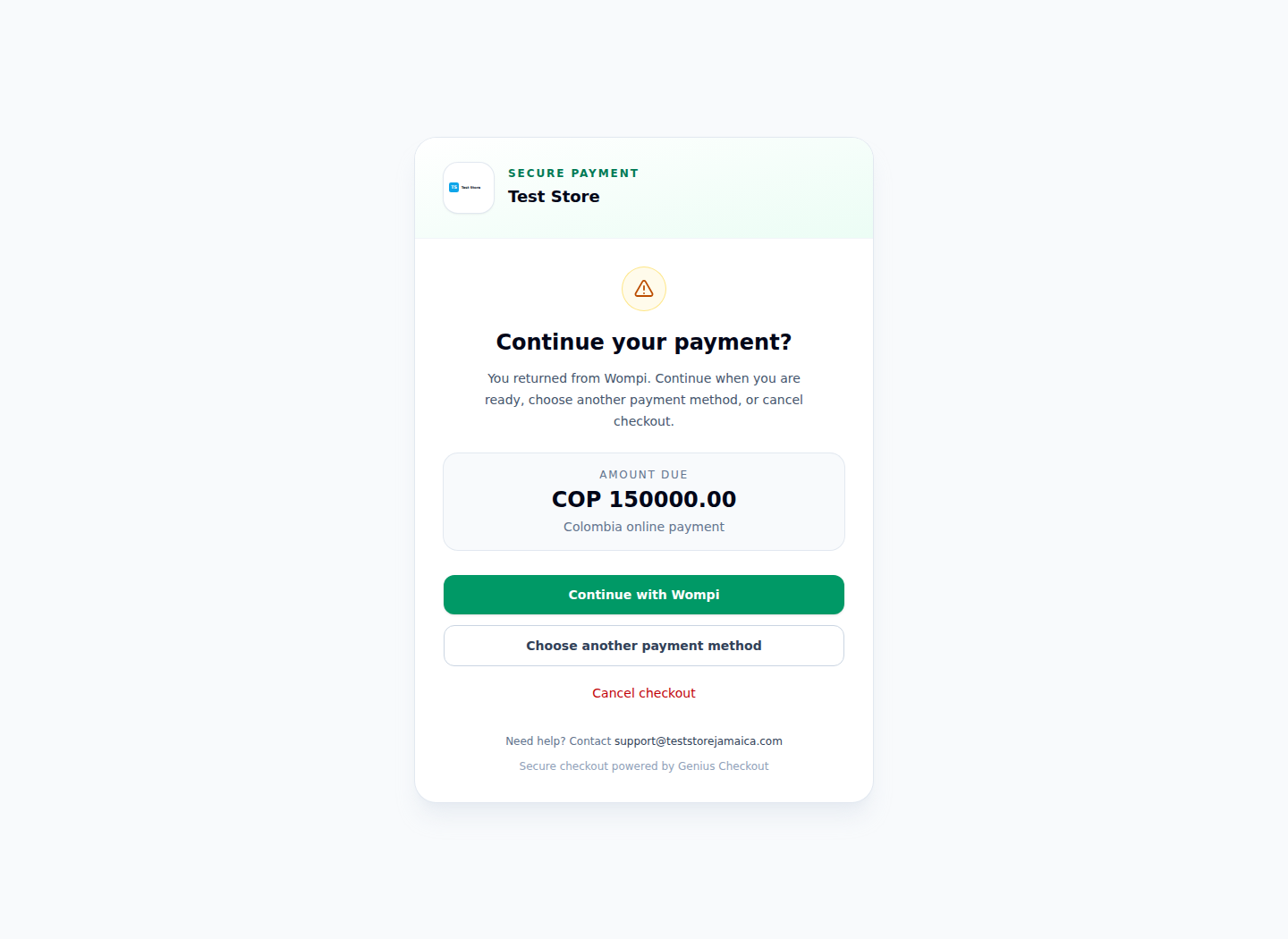
The Test Store screen shows the real Wompi-only return path used after a hosted payment handoff.
Configure the connection
- Add the Wompi Colombia public key, private key, integrity secret, and events secret to the correct Genius Checkout environment.
- Confirm that COP is enabled and Wompi shows the methods approved for the merchant.
- Install Genius Checkout from the HighLevel App Marketplace.
- Connect the intended HighLevel location to the intended Genius Checkout merchant.
- Run a controlled test for every method the business plans to advertise.
Do not mix Wompi test keys with production secrets. Do not treat a browser return as proof of payment; Wompi's verified status and event delivery decide the final result.
Keep retries auditable
If a payment is rejected or abandoned, that attempt stays in the timeline. A retry creates a new Genius Checkout session and provider transaction while retaining the HighLevel order reference as context. Support staff can see every attempt without rewriting history or reusing a provider order ID.
Test before the funnel goes live
Test approval, rejection, cancellation, pending status, browser Back, delayed events, and a successful retry. Confirm the same order can be traced in HighLevel, Genius Checkout, Wompi, and the settlement report. For bank-transfer or app-based methods, verify the message shown while the result is pending.
Sources and next step
Book a connection review for your HighLevel location and Wompi Colombia merchant account.